Skip to product information
1 of 30

DTF Transfers Gang Sheet Builder

Regular price $9.80
Sale price $9.80 Regular price
Shipping calculated at checkout.

Fit more artwork on one custom DTF gang sheet. Build a 22-inch-wide layout from $9.80 with artwork sized and counted by design. Combine small chest logos, sleeve prints, and full-back artwork. For a hyper-color look, our standard DTF printing brings rich color, smooth gradients, and crisp edges to the artwork you place. Choose a full printed sheet or optional Precut transfers to save time sorting and trimming at the press.

100+ Washes

When pressed and cared for correctly

Hot Peel

Remove the carrier while warm

Optional Precut

Get individually cut transfers

22-Inch Sheet Width

Combine multiple designs on one sheet

Size
Selected size 1 ft · 22 × 12 in $9.80

Want same day ship out? Be quick!

Shipping countdown Shipping countdown
Build Your Gang Sheet

Half Roll & Full Roll

Build your 30 ft sheet, add the quantity shown and apply the corresponding code at checkout.

Half Roll 6 × 30 ft sheets · 180 ft total
$299 With code
Full Roll 11 × 30 ft sheets · 330 ft total
$599 With code

DTF Transfers Gang Sheet Builder

Design Freedom in Your Hands: The DTF Gang Sheet Builder puts the power of design in your hands. Choose from a vast library of graphics, logos, and patterns, and effortlessly arrange them on a single sheet to create a customized gang sheet that reflects your unique style.

User-Friendly Interface: No need for extensive design skills. The DTF Gang Sheet Builder features an intuitive and user-friendly interface that allows you to drag and drop designs with ease. Create stunning gang sheets without the steep learning curve.

Real-Time Preview: Visualize your creations in real-time with the built-in preview feature. Ensure that your designs are arranged to perfection before committing to the printing process.

Built Around Your Design Mix

Use the online Builder when a job calls for different logos, names, graphics or quantities on one sheet. Size and organize individual artwork as you build, then check the completed arrangement before ordering.

Already have a finished production file? DTF Gang Sheet Upload offers a more direct ordering route.

Shop safely

Pay with trusted payment methods. Shipping, refund and support details are one click away.

Payment methods
  • Amazon
  • American Express
  • Apple Pay
  • Diners Club
  • Discover
  • Google Pay
  • Mastercard
  • Shop Pay
  • Visa

Shipping, refunds and support

How to Order Custom DTF Gang Sheets

Use Build Your Gang Sheet to place individual artwork files. The Builder preview lets you check the finished layout and finishing option before checkout.

1. Choose a sheet length

Pick the length of your 22-inch-wide sheet, then open Build Your Gang Sheet.

2. Upload your designs

Add each design as a separate file. Use a transparent PNG when the background should stay unprinted.

3. Set sizes and quantities

Enter the finished size and copy count for each design. Arrange them manually or use Auto Nest, then check for overlaps and leave room to cut.

4. Choose a finish and add to cart

Review the layout, then choose Standard for a full sheet or Precut for individually cut transfers. Confirm the sheet quantity before checkout.

Why Choose DTF Ghost Gang Sheets?

DTF Ghost combines print quality, clear ordering, and access to real help when a job needs it.

  • Layout control for mixed apparel jobs

    Arrange each design at its intended size and count. DTF Ghost prints the approved layout with saturated fills and fine detail, so you can group a run from chest logos to full backs.

  • Choose how the transfers arrive

    Order one full printed sheet or select individual Precut transfers. Both use the same vivid, ready-to-press hot-peel DTF printing.

  • Scale the same job to more footage

    Half Roll and Full Roll offers provide an option for larger repeat jobs. Check the qualifying sheet length, quantity and checkout code in the purchase area.

  • DTF Ghost support before and after printing

    Ask our team about file preparation, final dimensions, or application before ordering. If a print arrives damaged or incorrect, use the DTF Ghost Help Center to report the issue with your order details.

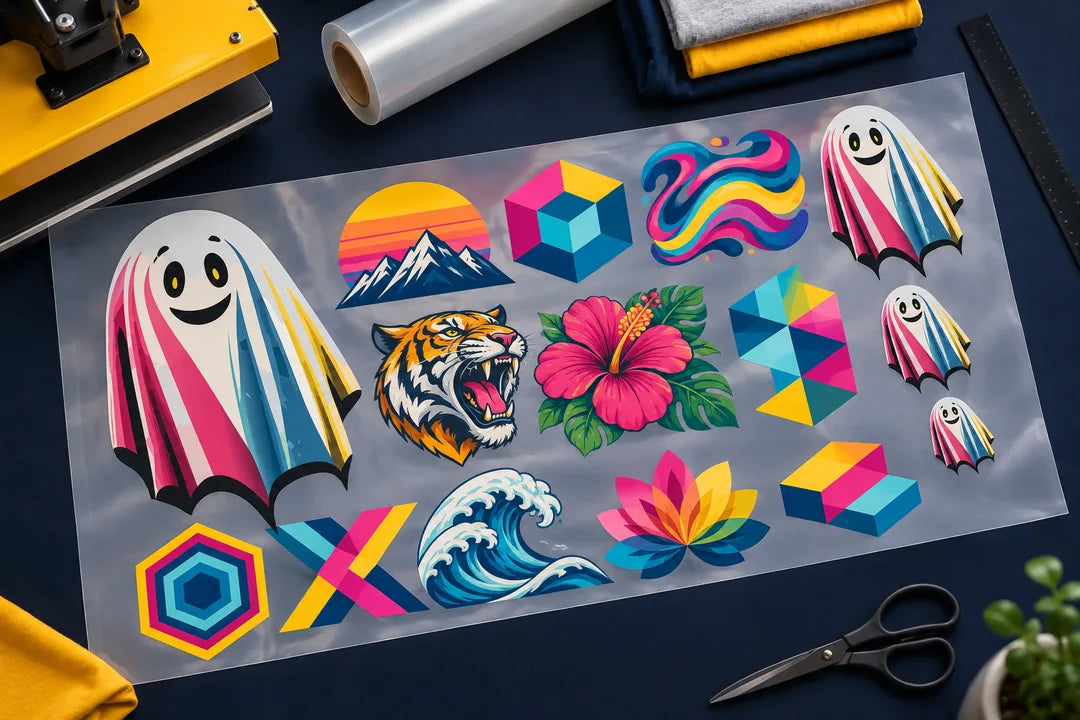
DTF Ghost prints in several sizes arranged on one continuous transfer sheet

Check Your Gang Sheet Before Printing

Check the artwork, spacing and order details before you send the sheet to print.

  • Check resolution at print size

    Use 300 DPI at the final size for raster artwork. A 10-inch-wide print needs a source about 3,000 pixels wide. Check transparency and fine detail in the preview.

  • Inspect the layout after Auto Nest

    Scan the sheet edges, rotations and spacing. Make sure no prints overlap or extend past the printable area and leave enough room to cut.

  • Confirm counts and finishing

    Compare each design’s size and copy count with your job list. Verify sheet length, quantity and your Standard or Precut selection.

How to Apply & Care for DTF Transfers

Separate the designs, test the actual garment and follow the instructions supplied with your film. Use the settings below as a starting point.

Application Help

Standard Heat Press Settings

Hot peel: remove the film right away while it is still warm. Start here, then adjust for your fabric.

Temperature
290–320°F
Time
8–15 sec
Pressure
Medium to firm
Peeling the clear transfer carrier from the DTF Ghost mascot print on a T-shirt
  1. Prepare the garment

    Lay the garment flat and pre-press for 2–3 seconds to remove moisture and wrinkles.

  2. Position the design

    Trim the sheet around the design if you selected Standard. Precut prints are ready to position. Keep the clear carrier facing up.

  3. Press a test piece

    Use the fabric settings below as a starting point. Keep seams outside the press area and apply even pressure.

  4. Peel and inspect

    Peel at the time indicated for your film. With standard hot-peel film, lift promptly after pressing, then check the edges.

Heat Press Settings by Fabric Use these as starting settings for your test press.
Fabric Temperature Time
Cotton Check that fine details and edges bond evenly. 310–320°F 12–15 sec
Polyester Test for press marks and dye showing through. 285–300°F 8–10 sec
Cotton / poly blend Test the blend before pressing the full run. 300–310°F 10–12 sec
Stretch fabric Let the fabric rest flat without stretching. 285–295°F 8–10 sec
Denim Keep thick seams off the pressing surface. 320°F 15–20 sec
Fleece Pre-press the area flat before positioning the print. 300°F 12–15 sec
Leather / PU Test first and keep the heat low. 275–285°F 6–8 sec

Check Before the Full Run

Check that fine details stay on the garment when you peel. If an edge lifts, review the film instructions and check that the press makes even contact before testing again.

Let the Garment Cool Flat

After peeling, lay the garment flat until it cools. Avoid stretching or stacking it while the print is still warm.

Wash & Care

Wait 24 hours before washing. Turn the garment inside out and wash at 86°F (30°C) on a gentle cycle if the garment label permits. Air-dry, skip bleach, and avoid ironing directly over the print.

Print Quality & Fabric Compatibility

Standard vs. Precut DTF Gang Sheets

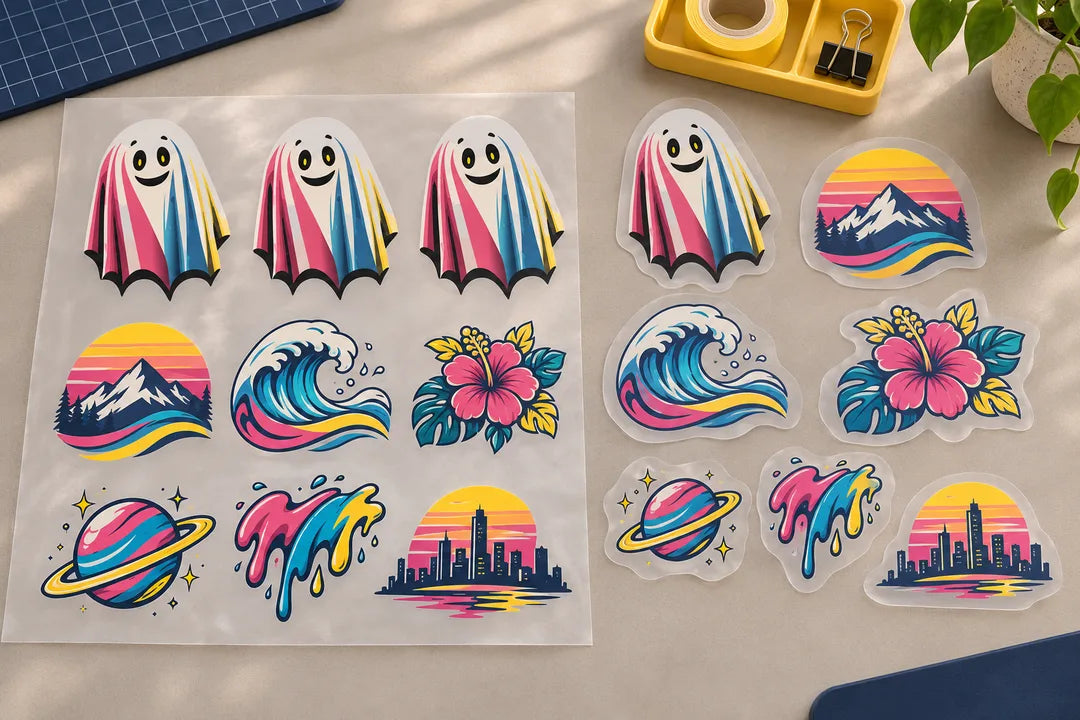
Both finishes use the same layout and high-resolution hot-peel DTF printing, with vivid color and crisp detail. Standard ships as a full printed sheet. Optional Precut arrives as individual transfers ready to sort and position.

  • Standard: Best Price When You Cut In-House

    Choose Standard for the lowest finishing cost on your DTF Ghost Builder order. You receive the full printed sheet, so you control when and how the transfers are separated. This works well when trimming is already part of your production routine.

  • Precut: Spend Less Time Trimming

    DTF Ghost cuts the printed designs into individual transfers before shipping. Check the per-design finishing charge in the Builder and compare it with the time your team would spend trimming repeat logos, names or a large mix of sizes.

Illustrated comparison of one full DTF gang sheet beside individually cut transfers

Compare DTF Ordering Options

Choose by artwork readiness, print quantities and the amount of production you want to handle in-house.

  • DTF Transfers by Size

    Easy exact-size ordering for one graphic. Upload it, choose the finished dimensions and quantity, then get individual hot-peel transfers.

    View option
  • DTF Gang Sheet Builder

    The flexible option for separate designs. Mix print sizes and quantities on a 22-inch sheet online and choose Standard or optional Precut.

    Current option
  • DTF Gang Sheet Upload

    The direct route for finished production files. Submit an approved 22-inch layout with its positioning, print dimensions and spacing already set.

    View option
  • Bulk DTF Gang Sheets

    Wholesale production at $0.15 per linear inch. Best for repeat apparel jobs that need at least five sheets, each 240 inches or longer.

    View option

DTF Ghost Standard vs. Hyper-Color DTF

Rich, saturated color and crisp detail come standard with DTF Gang Sheet Builder from DTF Ghost. Here’s what to look for when comparing standard DTF printing with transfers advertised as hyper-color DTF.

Illustration of a colorful DTF ghost design on a navy shirt beside its matching transfer film

DTF Ghost Standard

  • Vivid color and smooth gradients Our CMYK + White inks deliver saturated fills and smooth transitions in illustrations, logos, and full-color artwork. Solid areas and gradients both matter when you’re judging the finished print.
  • Crisp detail at the finished size High-resolution DTF printing helps preserve fine lines, small lettering, and clean edges. View the artwork at its actual print size and inspect the details again after heat pressing.
  • White coverage on dark apparel A white ink underbase helps bright colors and white lettering stand out on compatible dark fabrics. Check contrast on the actual shirt or garment you plan to decorate.
  • Use it for your order Use the DTF Gang Sheet Builder to place chest logos, names, and full-back prints on one 22-inch sheet. Standard and optional Precut change how the designs arrive. Both use the same standard printing process.
  • Color included in standard printing Vivid color is part of standard DTF printing at DTF Ghost. Review the selected size, sheet length, or finishing option to see what determines your order price.

Hyper-Color DTF Claims

  • Compare printed color, not just ink counts Ask for a pressed sample with the saturated colors you actually use. Ink counts and color-range claims alone give you little information about how your specific artwork will look on fabric.
  • Look at fine lines and small text Use the same print file and dimensions to compare sharp edges, narrow lines, and lettering. A broader advertised color range alone cannot tell you how much detail the transfer will retain.
  • Check white opacity on the same garment Press both samples onto the same dark fabric. Look for clear white details, solid color coverage, and clean edges once you’ve peeled the carrier.
  • Evaluate the finished print in the same light Lay the pressed samples side by side under the same lighting. Compare gradients, solid fills, and detail directly on fabric, where screen brightness and mockups cannot influence what you see.
  • Compare the total price for the same job Check which color finish is included at the advertised price. Use the same print dimensions, sheet length, quantity, and finishing options so the totals reflect the same order.

DTF Gang Sheet Builder FAQs

Artwork & Layout

How many designs fit on a 22-inch gang sheet?

The number depends on the finished artwork dimensions and spacing. For example, two 10-inch-wide prints can sit side by side if the cutting gaps and edges fit within the printable area.

What file type should I use for Builder artwork?

A transparent PNG works well for designs that should have no printed background. For raster artwork, aim for 300 DPI at the size you plan to print. Check the upload dialog for supported file types.

How wide is the DTF gang sheet canvas?

The Builder uses a 22-inch-wide canvas. Choose a length that fits every graphic at its finished size with room between transfers. The preview shows the printable area before you submit.

How can I check that artwork is sharp at 300 DPI?

Multiply the finished width in inches by 300. For example, an 11-inch print needs about 3,300 pixels in width. Start with the original high-resolution artwork for fine text, outlines and intricate edges.

Can I change the sheet length after starting a layout?

Use the size dropdown in the Builder, then inspect the whole layout again. Make sure everything fits inside the printable area and confirm the new sheet size and price before ordering.

Will a white background print?

White artwork can print. Remove the background if you want the garment to show through, and keep any intentional white details in the design.

Can I enlarge a low-resolution image in the Builder?

You can change the print size in the Builder. Enlarging a small raster file can make edges and lettering look soft. Upload the highest-resolution original you have if the preview looks pixelated.

Finishing & Orders

How is optional Precut priced?

Precut is charged per printed copy. Review the Precut charge in the Builder before you place your order.

Can I test one sheet or reorder the same layout?

Yes. Start with a single sheet to check your artwork and press settings. Save the approved layout and note the sheet length, finish and quantities for the reorder.

Should I build, upload or order by size?

Build online when your designs are separate. Upload a gang sheet if the layout is complete, or order by size for individual graphics.

How do I estimate my average cost per transfer?

Add the sheet price and any Precut charges, then divide by the number of usable prints on the sheet. The result is your average transfer cost before tax and shipping.

How should I store unused transfers?

Keep unpressed transfers flat, dry and in their original packaging. Store at room temperature away from direct sunlight and moisture.

How do I apply and care for these DTF transfers?

Use a heat press and start with the settings for your fabric in the guide above. Follow the peel instructions for the film you received, run a test press, and let the garment cool flat. Wash inside out on a gentle cycle and avoid heat directly on the print.

What is the difference between Standard and optional Precut?

Standard transfers arrive on the printed sheet for you to trim. Precut transfers arrive individually separated so you can sort and position them. The Builder shows the finishing price before checkout.

How long do production and shipping take?

Production and transit are separate. UPS Express transit is generally 1–3 business days after dispatch. Check the estimate for your address and the shipping policy.

Can I change an order or replace artwork after checkout?

Contact us as soon as you spot the issue and include your order number. We can review changes before printing starts. Once production begins, the order cannot normally be canceled. See the Help Center.

What if my transfers arrive damaged, defective, or incorrect?

Report the issue within seven days of delivery. Send your order number, a brief description, and photos of the prints and packaging. See the refund policy for the exceptions to returns on custom prints and how replacements or store credit are handled.

Complete your order